Tools
WebDAV is an extension of the HTTP protocol. Therefore, many tasks (browse, download, upload) can be executed using common web/http clients. However, for bulk operations it is advisable to install a special purpose WebDAV client or make use of scripts that hide some of the complexity resulting from working with tokens and directory structures.
The following table provides an incomplete list of clients that can be used to interact with the LOFAR LTA. The WebDAV page on Wikipedia includes a more extensive list of WebDAV clients and more can be found on the internet. However, not all WebDAV applications support Bearer token authentication, which is required to use Macaroons. For example, CyberDuck and WinSCP may not currently support Bearer tokens and are therefore not usable for working with the LOFAR LTA. For bulk operations, it is recommended to install and use the rclone client.
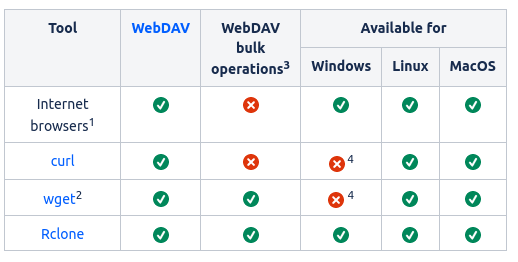
1 Internet browsers primarily process HTML that is retrieved using HTTP requests. The dCache WebDAV service generates HTML for viewing and downloading its content.
2 wget primarily fetches content using HTTP requests but includes functionality to parse the retrieved content for included links. This feature allows e.g. (recursive) retrieval of WebDAV directories, which generally requires a macaroon that includes 'LIST' capabilities.
3 Bulk operations include (recursive) downloading of directory content - this requires a macaroon that includes 'LIST' capabilities.
4 These tools have been (re-) ported to also work under Windows but are not natively developed for it. Installation and execution under Windows may require extra steps or have limitations. Check the respective websites for details.
Handling SSL warnings
When trying to download data from either Juelich or Poznan, the client will be offered an SSL certificate that is not
trusted by most browsers. This has to do with the fact that the infrastructure used for the LTA is originally developed
for High Energy physics, and uses Certificate Authorities common in this field. We are aware of this issue and hope it
will soon be resolved. For the time being, the user is advised to skip browser warnings about visiting wrongly secured
web sites. When using wget, the ‑‑no‑check‑certificate flag can be added to
circumvent this issue. In curl, the --insecure flag can be used.
Users who want to actively trust the certificates used for those two locations can download the root certificate. You can download the certificate package from the IGTF as linked in the table below. Inside the tar file, there is a directory containing several files. The Root certificate corresponding to the LTA locations is listed as the second column in the table below.
You can import the root certificate in your browser for access without security warnings. When using wget you can add
the ‑‑ca‑certificate flag followed by the path to the root certificate file.
In curl, the option is called --cacert. In the following sections, we will assume you downloaded the appropriate CA
certificate.
| Certificate download page (and a direct link to pem file) | CA root file name |
|---|---|
| Juelich (direct5) | cacert.pem |
| Poznan (direct) | CA: Polish Grid CA 2019 (Download as PEM) |
5 Since the direct link is http, your browser may issue a warning when clicking it.
Please note that for curl, in some configurations of the --cacert flag will cause curl to ignore the standard certificates. This can lead to an issue for the Juelich system,
which causes curl to still fail when using this flag. In those cases it is adviced to use wget in stead, as documented below.
Working with internet browsers
You can download single files using your web browser. Rather providing a custom header with the Macaroon as Bearer token, dCache
also supports it to be added as an extra argument to the URL, called authz. In practice, this means the URL to the file
can be appended with ?authz=<macaroonstring>. In fact, the result of a staging request shows direct links to each data product
including the macaroon in this way (as well as the option to download a list of files with macaroon, making bulk downloads
through command-line tooling easier).
Note that browsing LTA content will only work with a macaroon that includes authorization to 'LIST' paths. If a directory path is entered for a macaroon without 'LIST' authorization, the browser will show an 'Access Denied' message. By design, the macaroons generated by StageIT do not include 'LIST' authorization so this method is not applicable
Working with curl
Curl is included in most standard Linux and macOS installations. It provides a basic but powerful command-line tool for issuing HTTP and WebDAV commands. Curl lends itself well for inclusion in shell scripts. Some useful examples are provided below. More information can be found in the man-page and on the internet.
Setting up
There is no real need for setting anything up but when working with macaroons, it is convenient to store the (valid) macaroon in an environment variable. In the examples it is assumed that the MAC environment variable has been set to contain the macaroon:
export MAC=<your-macaroon>
The macaroon needs to be provided to the curl command for inclusion in a special purpose authorization header that will be associated with the request.
Usage
If the path provided in the commands below points to a directory in dCache, curl will return the html code that dCache generates for web-browsing.
Download a file and store it in a local file with the name <my-local-file>:
curl --fail --cacert <CA Cert path> -L -H "Authorization: bearer $MAC" https://<webdav-url>:<webdav-port>/<my-path>/<my-file> -o <my-local-file>
Download a file and store it in a local file with the same name as the remote file:
curl --fail --cacert <CA Cert path> -L -H "Authorization: bearer $MAC" https://<webdav-url>:<webdav-port>/<my-path>/<my-file> -O
The --fail flag ensures curl will fail when an error is encountered, and the -L flag tells curl to follow HTTP
forwardsm which happens in Juelich and Poznan.
Working with wget
In comparison with curl, wget is limited to retrieving content from web servers only, but it has more options to fetch lists of files or to e.g. recursively retrieve content that is stored in directories. This requires a macaroon that grants 'LIST' access. Some useful examples are provided below. More information can be found in the man-page and on the internet.
Setting up
There is no real need for setting anything up but when working with macaroons, it is convenient to store
the (valid) macaroon in a configuration file for wget. You can also configure the path to the CA root certificate
in the same config file. By default, wget will look for a configuration file .wgetrc that is stored in the user home
directory. The macaroon and CA path can be included in it as follows.
header=Authorization: bearer <Macaroon>
ca_certificate=<path to the ca>
Be aware that wget will always use the configuration file if it is stored in the default location, also for requests to other websites, and that may lead to undesirable behaviour.
It is possible to point wget to a configuration file stored in a custom location by adding the command-line parameter --config=<path-to/config-file>.
Alternatively, the macaroon can be provided on the command-line by adding the option --header "Authorization: bearer <Macaroon>" (in which case setting the macaroon in an environment variable may be more convenient, see the section on curl for more information) and
the CA root certificate, as mentioned before, by using the ‑‑ca‑certificate flag.
Usage
Download a file and store it in a local file with the same name as the remote file: (info) If the path provided in the command below points to a directory in dCache, wget will return the html code that dCache generates for web-browsing.
wget --config=<config-file> https://<webdav-url>:<webdav-port>/<my-path>/<my-file>
Download all files for which the URLs are contained in <url-file> (one URL per line):
wget --config=<config-file> -i <url-file>
Recursively download all content from <my-path> (info) Requires a macaroon that grants 'LIST' access.
The StageIT macaroon does not provide 'LIST' access, so not applicable